Integration examples for your store
Add this script tag to your page:
<script src="https://js.tip4serv.com/tip4serv.min.js?v=1.0.22" data-store-id="YOUR_STORE_ID"></script>
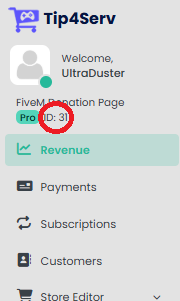
You'll need these values from your Tip4Serv dashboard to use the checkout:
Found in your dashboard URL or store settings. Required for all checkouts.
Found on any product page. Use either the numeric ID or the text slug.
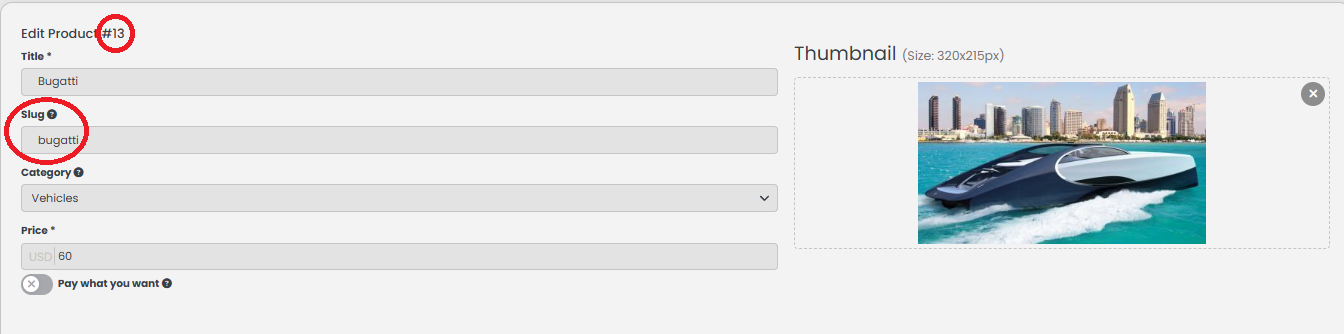
If you know how to use the Tip4Serv API you can fetch those values directly from the API.
Perfect for static websites. Just add the tip4serv-buy-btn class and data-* attributes to any button. No JavaScript knowledge required!
The most basic example. Just specify the product slug or ID.
<button class="tip4serv-buy-btn" data-product="vip">
  Buy VIP
</button>
Let customers buy multiple units of the same product at once.
<button class="tip4serv-buy-btn" data-product="50-coins" data-quantity="5">
  Buy 50-coins x5
</button>
Use the numeric product ID instead of the slug. Useful if your slug might change.
<button class="tip4serv-buy-btn" data-product="14">
  Buy Product #14
</button>
For donation products, specify the amount the customer will pay. Use a dot: 10.5 (not 10,5).
<button class="tip4serv-buy-btn" data-product="one-time-donation" data-donation-amount="10.5">
  Donate $10.50
</button>
Pre-select a specific game server for the purchase. Useful when you have multiple servers.
<button class="tip4serv-buy-btn" data-product="bugatti" data-server-selection="615">
  Buy Bugatti (Server 1)
</button>
Sell a subscription product as a one-time purchase. This disables auto-renewal for subscription products.
<button class="tip4serv-buy-btn" data-product="vip" data-subscription="false">
  VIP Monthly (one-time payment)
</button>
Redirect customers to custom pages after payment success or cancellation.
<button class="tip4serv-buy-btn"
        data-product="vip"
        data-success-url="https://js.tip4serv.com/thank-you.html?return=https://js.tip4serv.com/demo.html"
        data-cancel-url="https://js.tip4serv.com/cancelled.html?return=https://js.tip4serv.com/demo.html">
  Buy VIP (with redirects)
</button>
For dynamic websites and SPAs. Call Tip4Serv.Checkout.open() from your JavaScript code. Supports callbacks to handle payment results.
The simplest JS call — just specify the product.
Tip4Serv.Checkout.open({
  product: "vip"
});
Disable auto-renewal for subscription products. The customer pays once, no recurring charge.
Tip4Serv.Checkout.open({
  product: "vip",
  subscription: false
});
Buy multiple different products in a single checkout using an array. Use the Expert cart format (array of objects) if you need quantity/server/donation per item.
Tip4Serv.Checkout.open({
  products: ["mystery-box-lvl-5", "mystery-box-lvl-10", "mystery-box-lvl-15"]
});
Handle payment results in your code with callbacks. React to success, pending, cancel, or failure.
Tip4Serv.Checkout.open({
  product: "vip",
  onSuccess: () => console.log("Payment successful!"),
  onPending: () => console.log("Payment pending..."),
  onCancel: () => console.log("Payment cancelled"),
  onFail: (err) => console.error(err)
});
Advanced cart with per-product options: quantities, server selection, and donations combined.
Tip4Serv.Checkout.open({
  products: [
    { product: "50-coins", quantity: 5 },
    { product: "bugatti", quantity: 2, serverSelection: 615 },
    { product: "one-time-donation", donationAmount: 10.5 }
  ],
  onSuccess: () => console.log("Success!"),
  onPending: () => console.log("Pending verification..."),
  onCancel: () => console.log("Cancelled"),
  onFail: (err) => console.error(err)
});
Pass the store ID directly in the options instead of using data-store-id on the script tag.
Tip4Serv.Checkout.open({
  storeId: 31,  // Explicit, no need for data-store-id
  product: "vip",
  quantity: 1
});
Custom fields let you customize a product (color, options, text fields, etc.). Format: { FIELD_ID: VALUE }
Tip4Serv.Checkout.open({
  product: "luxor",
  customFields: {
    1: true,        // Safety enabled (checkbox)
    2: "2",         // Blue color (selection)
    3: 150,         // 150 liters fuel (number)
    4: "ABC-1234"   // License plate (text)
  },
  onSuccess: () => console.log("Vehicle ordered!"),
  onFail: (err) => console.error(err)
});
Each product in the cart can have its own custom fields. Perfect for configurable products.
Tip4Serv.Checkout.open({
  products: [
    {
      product: "luxor",
      customFields: {
        1: true,       // Safety ON
        2: "1",        // Red
        3: 200,        // 200L fuel
        4: "LUXOR-01"  // Plate
      }
    },
    {
      product: "swift",
      serverSelection: 611,
      customFields: {
        1: false,      // Safety OFF
        2: "3",        // Green
        3: 180,        // 180L fuel
        4: "SWIFT-99"  // Plate
      }
    }
  ],
  onSuccess: () => console.log("Vehicles ordered!")
});